The Financica AI assistant is not limited to the web app. You can connect a messaging app or your inbox and ask the same questions from your phone, or connect Claude or ChatGPT and talk to your books from there.
The assistant is available on Core and higher plans. On Core it uses your monthly assistant credits; on Scale and Enterprise it is unlimited. See using the AI assistant.
Where to connect
Open your avatar in the top right, choose User settings, then the Channels tab. You can also get there from the assistant panel: Assistant options, then Configure channels.
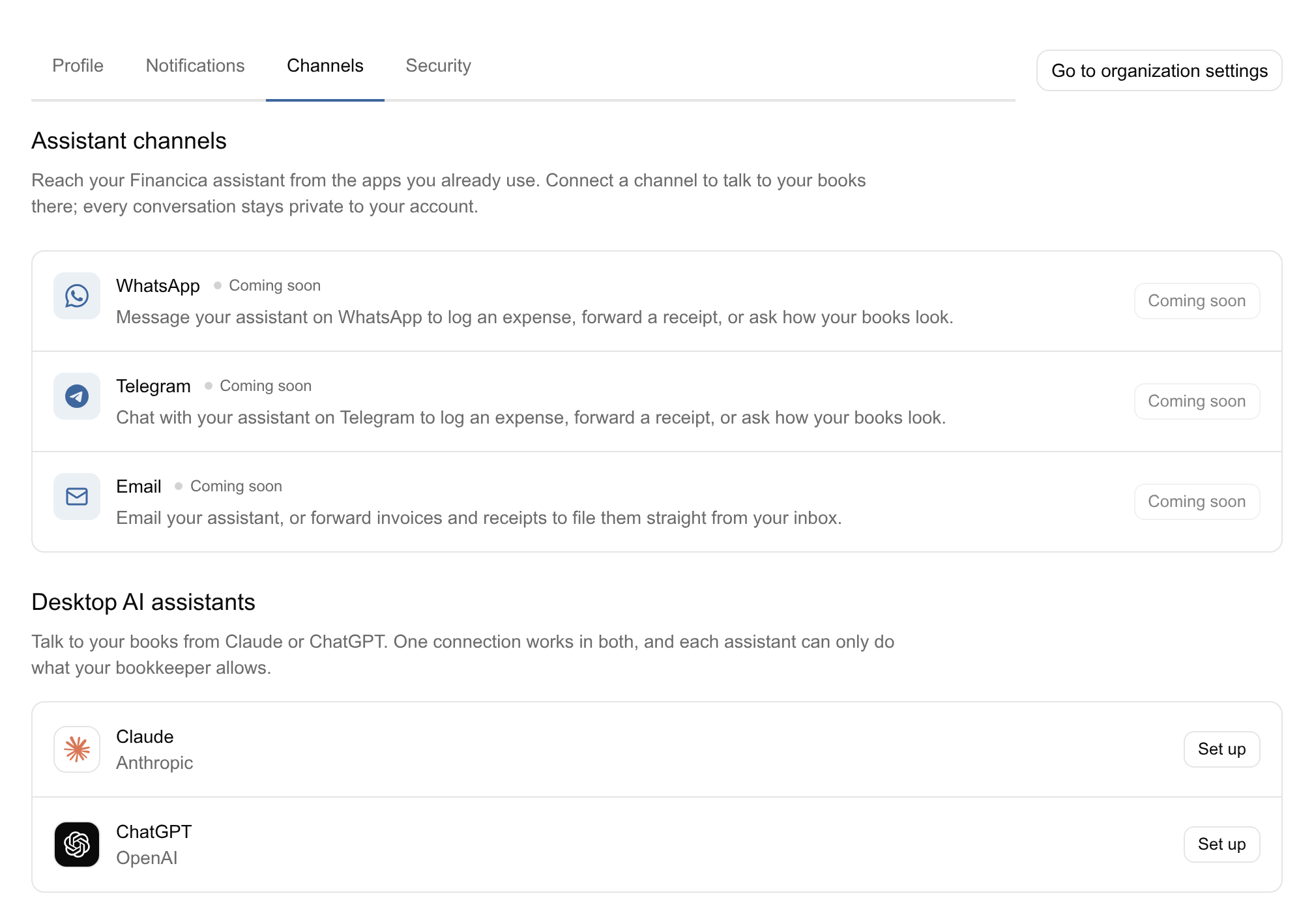
Each channel shows its status: Connected, Waiting to confirm while a connection is half done, Not connected, or Coming soon for a channel that cannot be connected yet.
Connections are personal: they link your WhatsApp, Telegram or inbox to your Financica user, and the assistant there can only see what you can see in the app. Every conversation stays private to your account.
- Click Connect next to WhatsApp.
- Click Open WhatsApp and send the message Financica prepared. The channel switches on the moment it arrives.
If you closed the page before sending it, Get the link again. Cancel abandons a connection that is still waiting.
Telegram
- Click Connect next to Telegram.
- Click Open Telegram and press Start in the chat with the Financica bot. The channel switches on the moment you do.
Click Connect next to Email. Once the channel shows Connected, it lists your personal assistant address (ending in @mail.financica.app), with a Copy button. Email that address to talk to the assistant, which replies in the same thread, or forward invoices and receipts to it to file them straight from your inbox.
Claude and ChatGPT
Under Desktop AI assistants, you can connect Financica to Claude or ChatGPT. One connection works in both. Click Set up next to the one you use; a guided dialog walks you through it, and it must stay open while you switch to the other app.
- Claude: the dialog opens Claude's connector settings with the Add custom connector dialog. Paste the name and the MCP server URL the dialog shows, keep the options Claude detects, add no headers, and click Add. Claude then opens a Financica sign-in: log in and approve the connection.
- ChatGPT: in ChatGPT's settings, open Apps & Connectors and turn on developer mode, then create a new connector with the MCP server URL the dialog shows. When ChatGPT asks you to sign in to Financica, log in and approve the connection.
Once connected, Set up again repeats the steps and Disconnect removes the connection. Changes to your books are not confirmed from Claude or ChatGPT: they are confirmed in the Financica app or on a chat channel.
Talking to the assistant
Ask questions the way you would in the web assistant panel:
- "What is still unpaid?"
- "Give me a financial overview for June."
- "Send me the income statement for last quarter as a PDF."
On WhatsApp, Telegram and email, files the assistant shares (a report, an invoice PDF, a receipt) arrive as a download link that opens without signing in and expires after 6 hours.
Working with several companies
If you belong to more than one organization, name the one you mean in your message ("give me the cash position for Acme"). The assistant knows which organizations you belong to; if you don't say which one you mean, it will ask rather than guess.
Approving changes
Reading your books never needs confirmation. When you ask the assistant to change something (void an invoice, apply a reconciliation match, create a journal entry), it pauses and asks for your approval before anything runs; on Telegram this shows as Approve and Reject buttons. Nothing is modified unless you approve it, and rejecting cancels the action entirely.
Disconnecting
On the Channels tab, click Disconnect next to the channel. This removes the link between that app and your Financica account; the assistant stops responding there until you connect again.