The client listing is the annual return Belgian VAT-registered businesses file for their clients who hold a Belgian VAT number: for each client, the turnover invoiced during the calendar year and the VAT charged on it. Financica builds the listing from your sales invoices and files it with Intervat when MyMinFin is connected, or exports it as an Intervat XML file you upload yourself.
The report is only available to organizations whose country is Belgium.
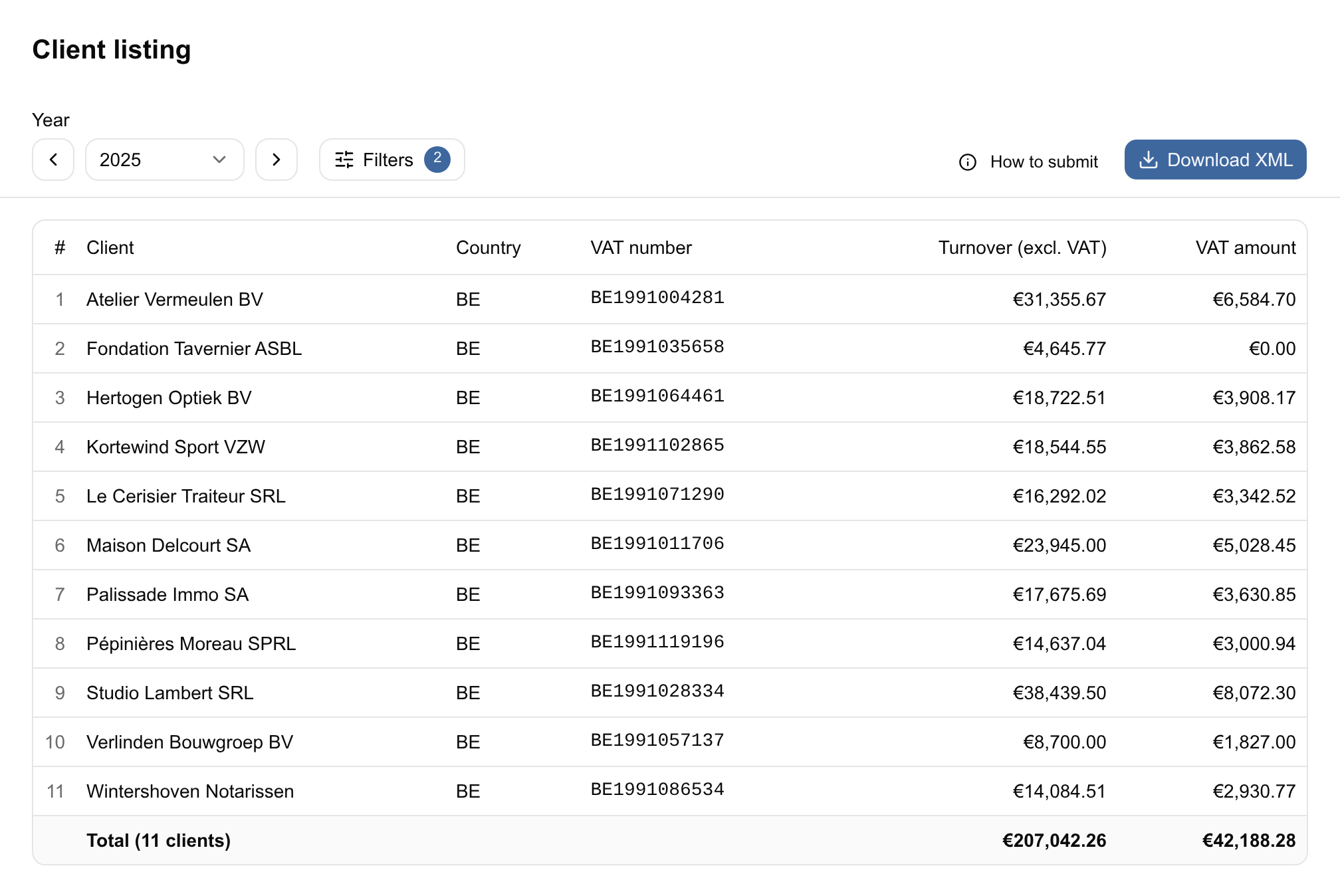
Accessing the client listing
Navigate to Reports > Client listing. The report opens on the previous calendar year, which is the year you normally file in the spring. Use the year stepper or the year picker to change it.
If you select the current year, a warning appears: the year is not over, so the listing will still change as you invoice.
The deadline
The listing must be submitted by March 31 of the year following the one it covers. A late submission can result in a fine. The How to submit button in the report header repeats the deadline next to the submission steps.
Which clients appear
A client is included when all of the following hold:
- It was invoiced by you during the year: the listing reads your sales invoices (customer invoices) with an issue date in the selected calendar year. Voided invoices are ignored, and so are supplier invoices.
- Credit notes are deducted: a credit note dated in the year reduces the client's turnover and VAT, so the line is the net of invoices and credit notes and can be negative. A credit note that corrects an invoice from an earlier year always lists the client, whatever the net amount, as the directive requires. A credit note that is not linked to its original invoice is treated as a same-year correction.
- The invoice is linked to a client record: an invoice with no counterparty cannot be attributed and is left out.
- The client record carries a usable tax ID: the first tax ID on the client record that is a recognisable VAT number is reported, with the country it belongs to. Identifiers that are not (a company number, for instance) are skipped. When the record holds no recognisable VAT number, its tax ID is reported as entered under the country of the client's address; with no address country either, the client is left off. Fix this on the client's page under Contacts.
Two filters then narrow the result. Both are on by default, and both are in the Filters menu in the header:
- Belgian VAT numbers only: keeps clients whose VAT number is Belgian (BE). This is what the return asks for; turn it off only to inspect the underlying data.
- Min. €250 turnover: drops clients whose net turnover for the year is €250 excluding VAT or less. This is the regulatory threshold at or below which a client does not have to be listed. A client with a credit note correcting an earlier year stays listed regardless.
The filters are part of the page URL, and the XML you download reflects exactly the selection on screen. If you turn a filter off to look at something, turn it back on before exporting.
How to read the figures
Each row shows the client, its country, the full VAT number, and two amounts:
- Turnover (excl. VAT): the sum of the invoice subtotals for the year, before VAT, minus the credit notes issued that year.
- VAT amount: the sum of the VAT charged on those invoices, minus the VAT on those credit notes.
A negative amount, from a credit note larger than the year's invoices, is shown with a leading minus and filed as such: Intervat accepts negative amounts.
The footer totals both columns and counts the clients on the listing.
Every figure is in euro. An invoice issued in another currency is converted at the European Central Bank reference rate for its own issue date, not at a single rate for the year, so a currency that moved between January and December is reflected as it stood on each invoice.
If no reference rate can be found for a currency on one of those dates, the report says so and the XML download is blocked rather than filing a total that mixes euro with an unconverted amount.
Click a client name to open its page and check the invoices behind the figure.
Warnings to resolve before filing
- Duplicate VAT numbers: if two client records share the same VAT number, the file is invalid: the same client would be reported twice. Correct the VAT numbers, or merge the duplicate clients, before exporting.
- VAT number not configured: the file identifies you as the declarant, so your own VAT number must be set in Settings > Organization. Until it is, Download XML stays disabled.
Filing with Intervat
With MyMinFin connected, admins see File with Intervat in the header once the year has ended. Click it, then click again to confirm: Financica sends the listing to Intervat and records it as filed, and the proof of submission is attached when Intervat publishes it. What is filed is always the statutory selection (Belgian VAT numbers with at least €250 of turnover), so the button is only active while both filters are on and the rows on screen are exactly what goes out. If Intervat refuses the listing, the message says why and the year stays open. A year with a listing already on record does not offer the button, and neither does a year with nothing to list (see Nihil listings below).
Without the connection, click Download XML in the header. The file is a client listing declaration for the selected year, built from the rows on screen, and is uploaded to Intervat under Declaration by file. The same listing is also offered on the year-end close page, next to the annual accounts and the tax return, when your financial year is the calendar year. There, the card waits until the calendar year has ended, and links back here so you can review the rows first.
The How to submit button walks through it:
- Download the XML file.
- Log in to Intervat with itsme or another available method.
- Select the profile with your company number.
- Upload the file under "Declaration by file".
- Follow the steps to finalize the submission.
- Record it as filed (below), or let its acknowledgement on MyMinFin record it.
Recording the filing
The listing on record is the filing itself, kept with your VAT filings, not a copy of the file. It is recorded from the Client listing card on the year-end close page, through its ... menu:
- Filed outside Financica…: you or your accountant filed the listing on Intervat. Attach the proof of reception MyMinFin offers as soon as you file, as a PDF, an XML file or both, and say when and by whom it was filed. The XML is checked: one for another year, another company or another kind of declaration is refused. The date is taken from it when you attach it.
- Not required for this year…: no listing was due, for instance because the company was not yet VAT-identified that year. Pick the reason, and explain it when none fits.
With MyMinFin connected, you rarely need the first: when Intervat's acknowledgement of the listing reaches your MyMinFin documents, Financica records the listing as filed with that acknowledgement as its proof. The client listing page then shows what stands above the table, with a link to the proof. Undo on the card takes the record back.
When your financial year is not the calendar year, the year-end page has no client listing card: produce the listing from this page. With MyMinFin connected, its acknowledgement still records the filing.
Nihil listings
If no client meets the criteria for the year, the report shows an empty state instead of a table. You still have to file: a nihil (blank) listing is submitted manually on Intervat, and the How to submit button lists the steps for that case, through "Declaration by screen" with the "I want to make a nihil return" box ticked.
Related
- VAT returns: the periodic declaration and the intra-community listing.