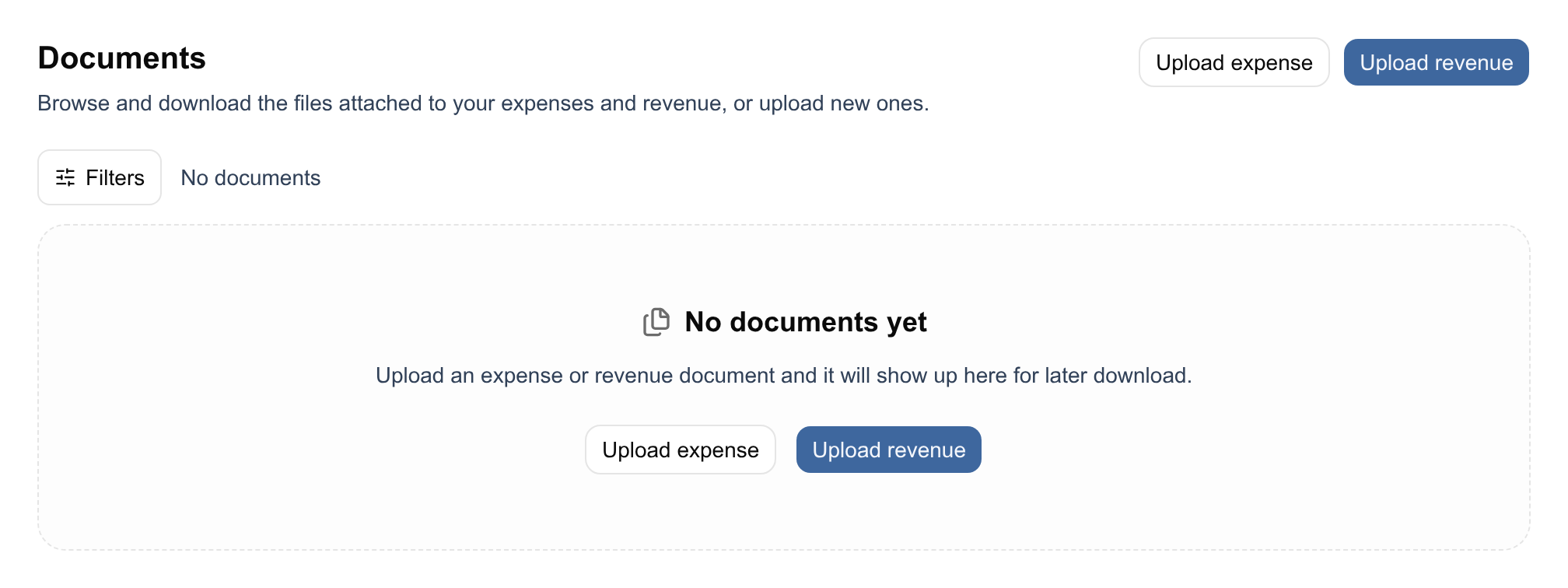
The Documents entry in the sidebar is a single list of every file stored in your organization, whatever put it there. It is where you go when you need a file back rather than the record it belongs to.
What lands here
Documents arrive from every part of Financica that accepts or produces a file:
- Receipts and supporting files you attach to a transaction.
- Supplier invoices uploaded to Expenses, including the PDFs Financica reads with OCR.
- Customer invoices uploaded to Revenue.
- Invoices arriving structurally, such as UBL XML files and documents received over Peppol.
- Invoice PDFs fetched by integrations, such as Stripe, Qonto or your cloud providers.
- Files from your tax filings: VAT account statements, VAT return and corporate tax filing proofs, and the documents Financica downloads from MyMinFin (see below).
- Files you send the AI assistant.
You never upload directly into the library. The two buttons in the header, Upload expense and Upload revenue, take you to the upload flows that create an invoice from the file.
Categories
Every document carries a category badge. You do not set it; Financica derives it from the invoice, credit note, payment request or receipt the document is attached to:
- Incoming invoice and Outgoing invoice: attached to a supplier invoice or a customer invoice.
- Incoming credit note and Outgoing credit note: attached to a credit note you received or issued.
- Incoming payment request and Outgoing payment request: attached to a payment request, such as a tax assessment.
- Incoming receipt and Outgoing receipt: attached to a receipt.
- Other: everything not attached to any of these, such as files attached to a transaction directly, VAT account statements and filing proofs.
Documents from MyMinFin
When your organization is connected to MyMinFin, the documents Financica downloads from it are stored here like any other file. Each one is named after its MyMinFin document type and date. Where it ends up depends on what it is:
- A corporate tax assessment becomes a payment request, so its PDF shows as an Incoming payment request.
- VAT account statements, VAT and Biztax acknowledgements and other notices show as Other. Acknowledgements are attached to the filing they prove.
Filtering
The Filters button opens two filters, and the button shows how many are active.
- Document type: pick one or more of the categories above.
- Invoice date: a date range, either a preset (current or previous month, quarter, calendar year, or fiscal year) or your own from/to dates. Presets follow your organization's fiscal year end.
One consequence is worth knowing: the date filter matches on the issue date of the linked invoice, not on when the file was uploaded. Documents in the Other category have no invoice date to compare against, so setting any date range excludes them.
Regardless of filters, the list is ordered newest upload first and paginated at 50 documents per page. The count above the list tells you how many documents match.
The library has no search box. To find the documents of one supplier or customer, open the command palette (Ctrl+K, or Cmd+K on a Mac) and type their name: it finds the contact (also by VAT or company number) and their invoices, and an invoice page shows the files attached to it.
What you can do from here
- Download one file: the Download button on any row.
- Download many at once: tick the checkboxes on the rows you want (hold Shift to select a range), then use Download as ZIP in the bar that appears at the bottom. Inside the archive, files are sorted into a folder per category. A progress bar reports each file as it downloads, and the message at the end tells you if any file could not be found in storage.
- Select a whole page: the checkbox in the list header.
- Delete a document nothing uses: the bin icon on the row asks you to confirm, then deletes the file permanently. Only a file attached to nothing can go, such as one you sent the assistant and never recorded. A document attached to a transaction or an invoice, or used as proof of a filing, is refused: open what it is attached to and remove it there.
Each row shows the file name, its category, its file type and its size, so you can tell two similarly named PDFs apart before downloading.
Documents cannot be renamed from the library.