The Bank accounts page lists the bank accounts connected to Financica through a bank feed, and is where you connect new ones. Open it from Data Sources > Bank accounts in the sidebar.
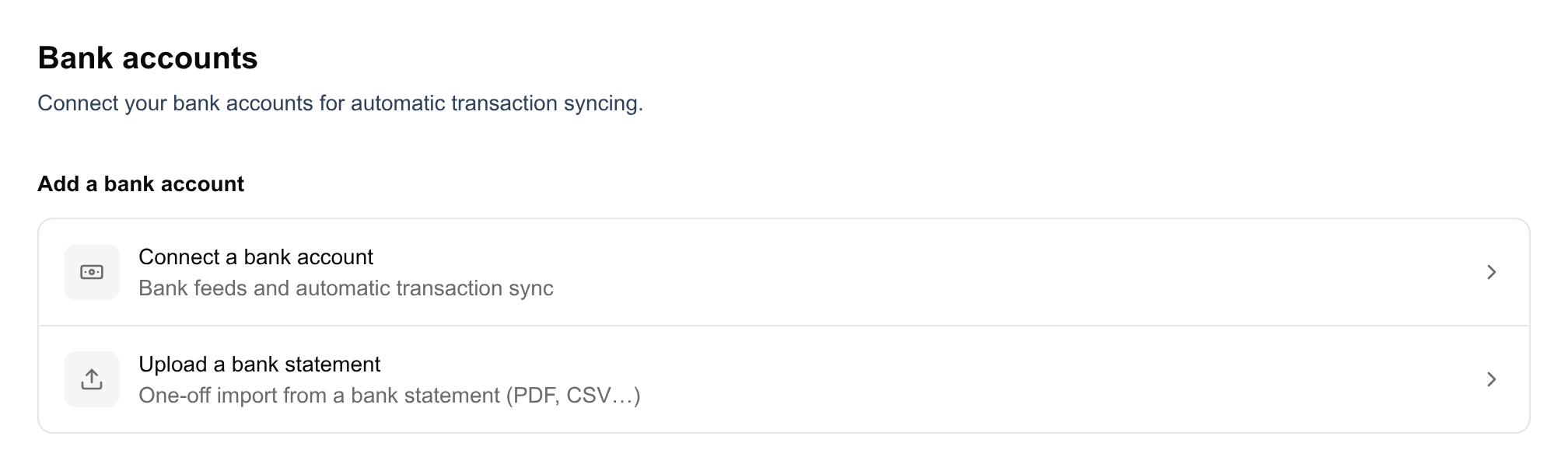
The page
The page has two parts:
- Add a bank account offers two routes: Connect a bank account (a bank feed with automatic transaction sync) and Upload a bank statement, which opens the bank statement import page.
- Your bank accounts lists every connected account with its bank's logo, its name and its IBAN, and the account's currency. When the bank authorization is close to expiring or has expired, a badge (Expires in 5 days, Authorization expired) takes the place of the currency.
Connecting a bank is described step by step in Connecting bank accounts.
The account page
Click an account to open it. The header shows the bank, the account name, whether the connection is Active or Inactive, when it Last synced, and how long the bank authorization still runs. Below it you find the IBAN, BIC, account holder, currency and the Current balance the bank reports.
- Sync now queues a sync straight away. While it runs, the page says so and counts the transactions synced so far. Syncs also run automatically on a schedule, so you rarely need it.
- Latest transactions names the ledger account the feed posts to (click it to open that account) and, for European bank connections, shows the most recent transactions the bank sent.
- Audit log records each sync and any errors or warnings. Use it to diagnose missing transactions or connection problems.
Each connected account posts to one account in your chart of accounts. When you connect a bank, Financica links each account you select to the ledger account with the same IBAN and currency, and creates one if none exists. An account you already filled from statement imports therefore keeps its history and simply starts receiving the feed.
Bank balance check
Each sync also records the balance the bank reports for the account and compares it with the account's ledger balance in the same currency. Many banks report an available balance, which already deducts card payments they have not booked yet, so a ledger above that balance is expected for a few days. Financica waits until a difference has lasted longer than a pending payment would before it raises it; a difference the bank's booked balance shows, or a ledger below the bank, is raised from the next sync.
Once it is raised, the account's page (Accounting > Chart of accounts, then the account) shows a Bank balance mismatch warning at the top, with both figures, the difference, the date of the bank balance and the date the two started to disagree. View bank connection opens the connected account under Data Sources > Bank accounts.
Imported statements are checked the same way. Most statements print the balance after each line; when the ledger stops matching those balances, the same warning names the statement's last balance, the ledger's, and the day they started to disagree, and the import that finds it lists it among its warnings.
A difference that stays usually means the ledger is missing something, or has something twice:
- The account already had transactions (from statement imports, for instance) when you connected the bank. Financica then posts no opening balance, and the difference is what the account held before the first synced transaction. Book that opening balance yourself; see bank statement imports for how opening balances are posted.
- Transactions were imported twice, or a sync skipped some. The audit log for the account shows what each sync brought in.
- A transaction was booked to this account by hand, or moved to another account, without a matching bank movement.
Re-authorization
Banks limit how long they share data with an app. In Europe (PSD2) an authorization typically lasts up to 90 days. From 14 days before it ends, the account page shows a Bank authorization expiring soon banner, and once it has ended, Bank authorization expired. Both carry a Refresh authorization button (also in the account's More actions menu):
- Click Refresh authorization.
- Confirm access again at your bank.
- Syncing resumes, including the transactions that happened while the authorization had lapsed, as far back as your bank allows.
Disconnecting an account
Owners and admins of the organization can disconnect an account from the More actions menu, with Disconnect bank account. This stops future syncing but does not delete any transactions already imported, and the ledger account stays in your chart of accounts.