Accounting > Contacts lists every party in your books in one place: the customers you bill, the suppliers you buy from, and the people, shops and services that appear on your bank lines without an invoice.
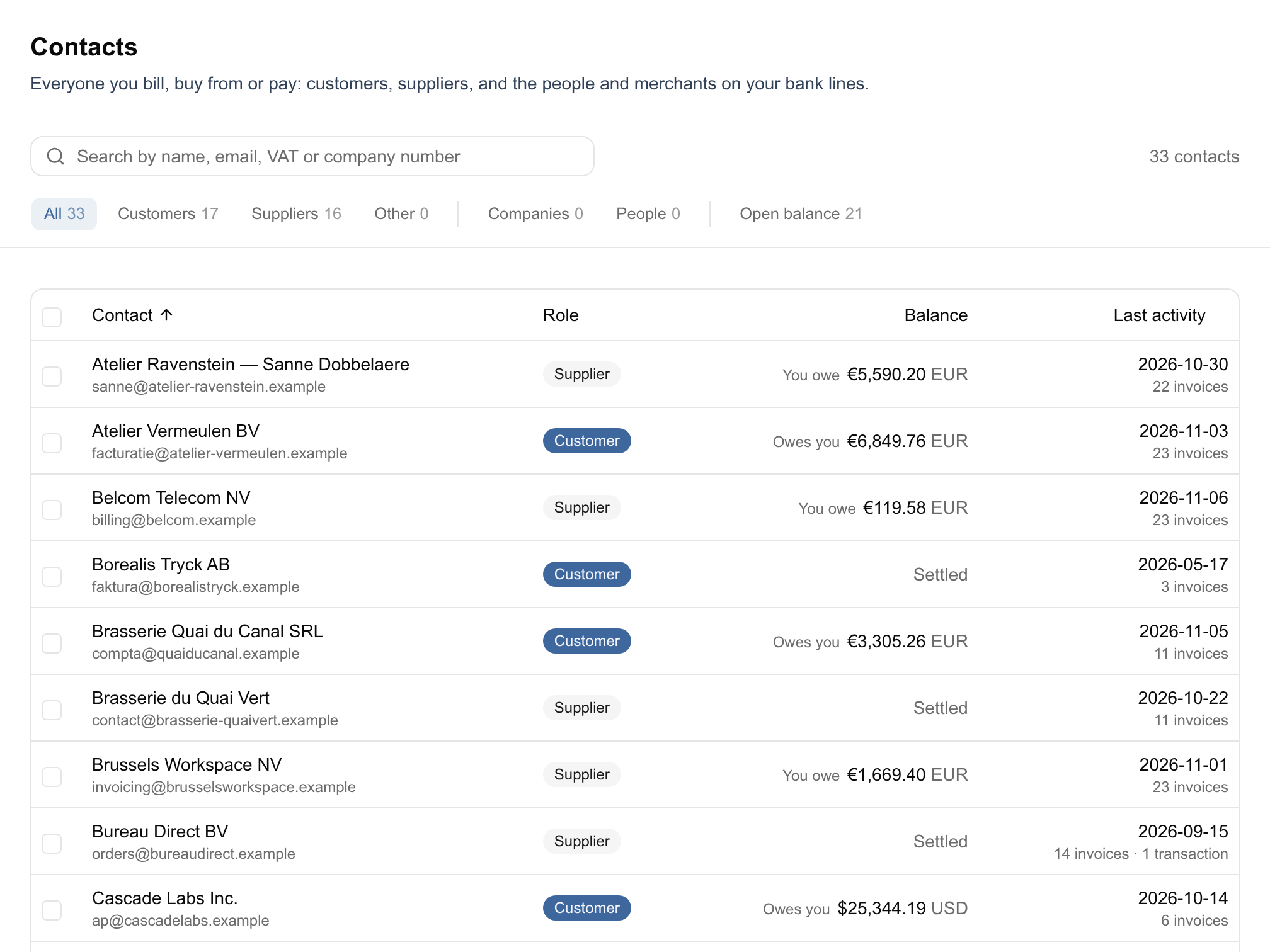
Filters
- All, Customers, Suppliers, Other: the role. A contact can be both a customer and a supplier, so it shows under both. Other holds the contacts that are neither, such as a card merchant or a person you paid back.
- Companies, People: whether the contact is a legal person or a natural person. Click the active filter again to lift it.
- Open balance: only the contacts with something still to pay, either way.
- Search: by name, email, VAT number or company number.
Each filter shows how many contacts it holds.
Columns
- Contact: the name, with Person or Company and what tells two contacts of the same name apart: the email, else the VAT number, else the company number.
- Role: Customer, Supplier, or both.
- Balance: where you stand today, per currency. Owes you is what they still have to pay on your invoices, You owe what you still have to pay on theirs, each net of open credit notes. For a contact that is both a customer and a supplier, the two are netted. A contact you have invoices with and nothing open shows Settled.
- Last activity: the date of the latest invoice or bank transaction, with how many of each.
Click Contact or Last activity to sort the list by name or by most recent activity.
Where contacts come from
You rarely create a contact by hand. Financica creates one when:
- You create or upload an invoice with a party it does not know yet. An expense makes it a supplier, a revenue invoice a customer.
- A bank transaction names someone who matches no existing contact. These contacts are neither customer nor supplier, so they appear under Other until you mark them.
To add one yourself, open the customer or supplier picker on an invoice and choose Create "name", or New customer / New supplier.
Person or company
Financica decides on its own whether a contact is a person or a company: from the Belgian company register (BCE/KBO) when it knows the enterprise number, otherwise from the legal form in the name (BV, SRL, Ltd) and similar clues. When in doubt, it says company. Your own choice always wins: change it while editing the contact, or for several at once from the list.
The contact page
Click a contact to open its page.
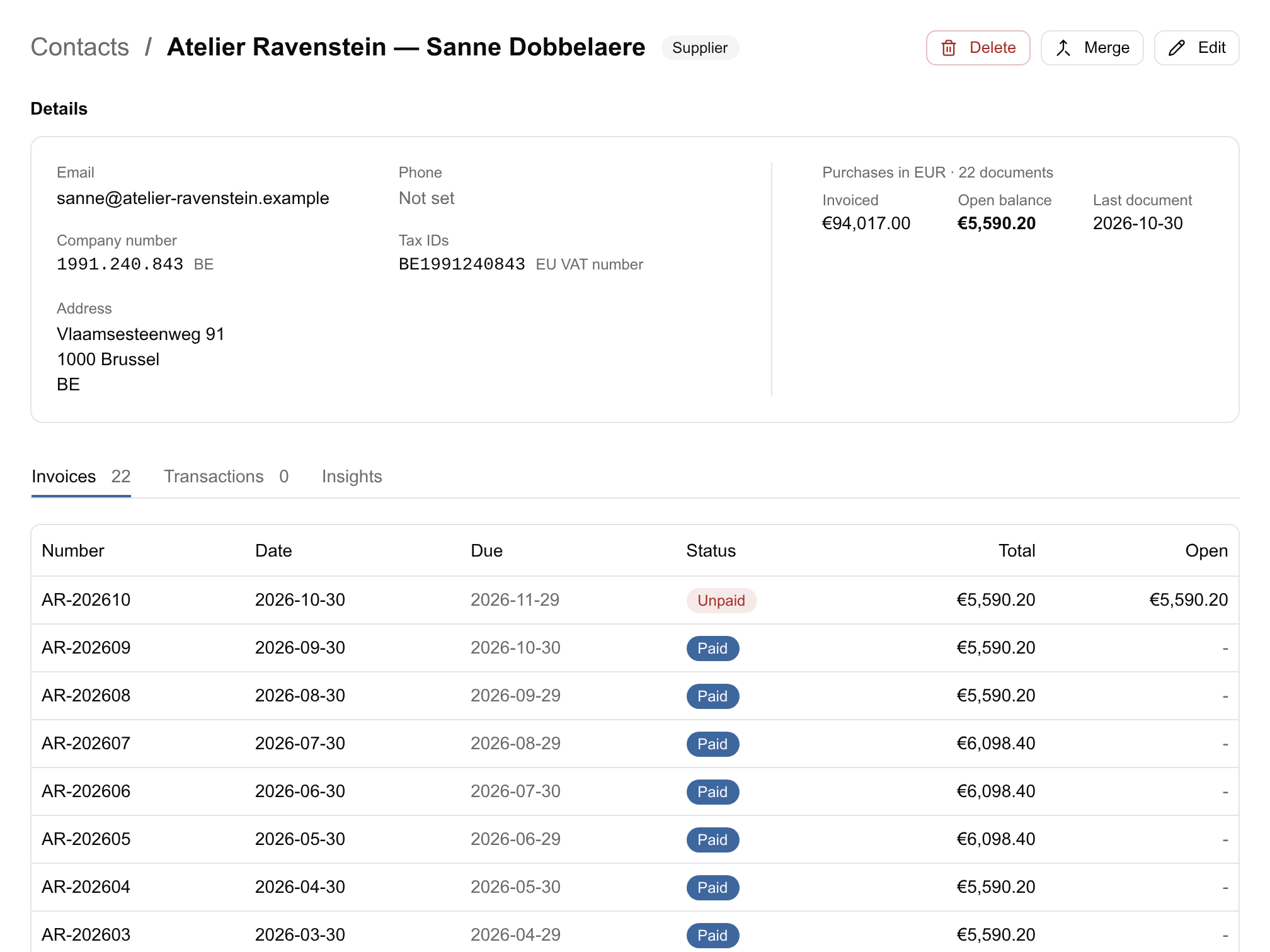
The Details card shows the email, phone, address, tax IDs and company number, and for a customer the invoice prefix. Next to it, one card per currency sums up the trading relationship: what was Invoiced, the Open balance and the Last document. If the contact came from Stripe, a link opens the customer in Stripe.
Below are three tabs:
- Invoices: every invoice and credit note linked to the contact, in both directions, with date, due date, status, total and open balance.
- Transactions: every transaction linked to the contact, newest first, with the bank or card account and amount. A transaction with no bank or card line shows as a journal entry.
- Insights: how the relationship goes (see below).
The buttons at the top Edit, Merge and Delete the contact. Merge asks for another contact and folds it into this one: its invoices, transactions and bank details move here. Delete removes the contact; its invoices and transactions stay in the books, without a contact.
Editing a contact
Edit turns the page into a form: name, the Customer and Supplier roles, person or company, email, phone, address, tax IDs and company number.
- Company number: the number in the company's own register (a Belgian enterprise number, a French SIREN), shown in that register's format. Belgian, French, Norwegian and Swedish numbers have their check digits verified, and a Belgian VAT number fills in the enterprise number it contains.
- Tax IDs: VAT numbers are stored without spaces or dots. Typing one looks the company up and fills the fields that are still empty.
- Update from VAT register replaces the name and address with what the register holds. A Belgian company is read from the Crossroads Bank for Enterprises (BCE/KBO), from its enterprise number alone if it has no VAT number, and the VIES only says whether its VAT number is active. A UK company is read from Companies House, other EU companies from the VIES. A company registered without an active VAT number, such as a public body or an association, is shown as such rather than as not found.
- Invoice prefix (customers only): used when invoices are numbered per customer: letters, digits and dashes. Left empty, a default is used. See invoice numbering.
When you create or edit a party from an invoice, the form also says whether it is reachable on Peppol.
If the BCE/KBO records a Belgian contact in bankruptcy, liquidation or judicial reorganisation, its invoices show a warning in their checks.
Insights
The Insights tab is part of the Scale plan; on other plans it offers View plans. It reads the trading relationship from your books, stays empty until at least one invoice or credit note with the contact is in the books, and shows one card for sales and one for purchases per currency.
At the top, Last 12 months and All time switch the whole tab between the trailing twelve months and everything since the first document.
- Average monthly revenue (or spend): the total of the invoices less the credit notes, VAT included, divided by 12. All time, it is divided by the number of months since the first document.
- Average time for them to pay (or to pay them): from an invoice's issue date to the date of the bank movement that last settled it, over invoices that are fully paid. Settling an invoice with a credit note is not a payment and does not count, and invoices for zero are left out.
- Current standing: who owes whom today, and how much of it is past due.
Below the figures, two lists of bars break the same period down:
- Revenue by account (or Spend by account): the ledger accounts the invoice lines were booked to. Lines booked to no account show as Unassigned.
- Revenue by label (or Spend by label): the labels on the posted invoices' transactions. An invoice with several labels counts under each of them, so this list does not have to add up to the list by account.
Both lists are ranked largest first, and each bar is drawn as a share of the largest entry in its list. The amounts are the invoice lines, net of VAT, with credit notes deducted, so they do not add up to the VAT-included average above; a contact credited more than invoiced shows a negative amount and a grey bar.
Contacts on invoices
An invoice shows two things side by side that are easy to confuse:
- The party details (name, address, tax ID) as written on this invoice. Editing them changes this invoice only. On a structured e-invoice (Peppol/UBL) or a hosted document they are read-only, since the document itself states them.
- The linked contact (Linked supplier or Linked customer): the contact the invoice is booked against. Pick, change or unlink it from the invoice; the change is saved immediately. The arrow next to it opens the contact in a new tab.
The pencil on the party card opens both in one dialog: the This invoice tab edits the invoice's details, the Supplier record or Customer record tab edits the contact itself, which applies to every invoice linked to it.
Contacts on transactions
Financica links each bank transaction to a contact from the invoices it pays, or else from the account number and name on the bank line. The transaction's Counterparty row shows the contact and where it came from (From the linked invoice or From the bank details). Choose another contact there, or none, and Financica keeps your choice, remembers the line's account and name for that contact, and applies it to later lines from the same party. See understanding transactions.
Working on several contacts at once
Tick the contacts you want, on one page or across several, then:
- Mark as: make them customers or suppliers (or Not a customer, Not a supplier), or set them as people or companies.
- Merge: keep one and fold the others into it. Their invoices and bank transactions move to the one you keep.
- Delete: remove them. Their invoices and transactions stay, without a contact.
Belgian client listing
For Belgian organizations, the annual client listing of Belgian customers and the amounts invoiced to them is built from your revenue invoices. See client listing.