Transactions are the foundation of your bookkeeping in Financica. Every bank movement, invoice posting, payment and manual journal entry is a transaction made of two or more legs that balance, and each one can be categorized, documented and commented on.
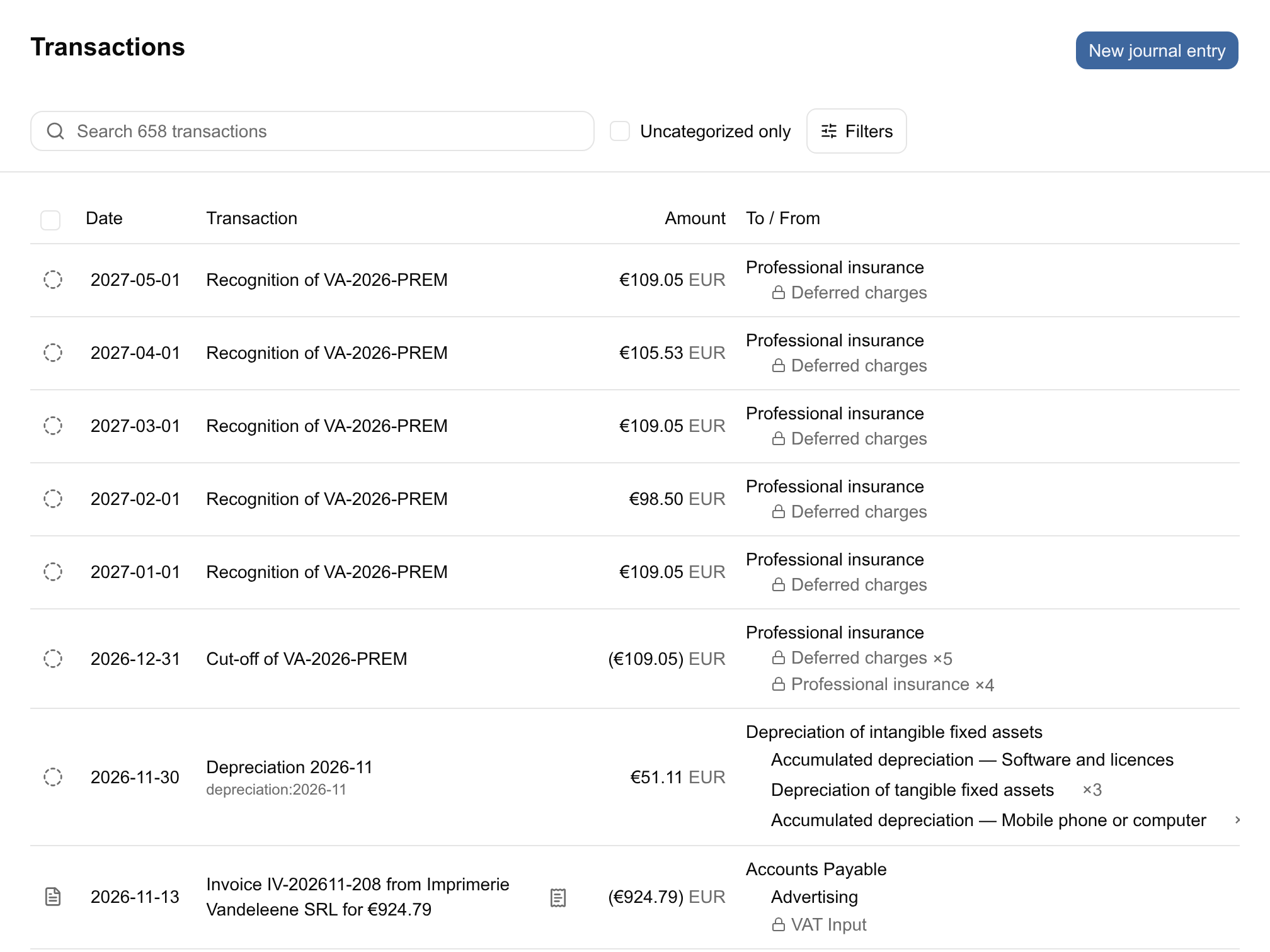
The transactions list
Go to Accounting > Transactions. The list shows, for each transaction:
- Date
- Transaction: the description, from your bank or entered by hand, with a small marker showing where it came from (Bank feed, Imported statement, Wise, Stripe, Manual entry, Invoice or Other source). Hover the marker for details.
- Amount: inflows and outflows are coloured differently. A line converted from another currency says so in its tooltip.
- To / From: the account (or accounts, for a split) on the other side of the bank leg. You can change the category right here by clicking it, without opening the transaction. A transaction paid against an invoice shows the invoice instead.
- Running balance: shown when the list is filtered to a single account.
A transaction reconciled from two records shows a link icon (Reconciled from two records).
Searching and filtering
- Search: the search box filters by description. Press
/to jump to it. - Uncategorized only: the toggle next to the search box lists only transactions that still have a leg on an uncategorized account, including bank payments of an invoice whose lines are still uncategorized. The dashboard's Review transactions action opens the list with this filter on.
- Filters: the filters dialog adds a Date range, a Data source (one or more bank accounts or feeds), Labels (once your organization has labels), an amount range and currencies, and Only transactions with no invoice or expense linked, which finds bank lines that still need a supporting invoice.
Filters are kept in the page address, so you can bookmark or share a filtered view.
Bulk actions
Tick the checkboxes on the left to select transactions; hold Shift to select a range. The selection bar shows the count and the combined total, and offers:
- Categorize...: book the selected transactions to one account (or create a new one by typing its name), or choose Auto categorize using AI. See Categorizing transactions and AI-powered categorization.
- Label...: add a label to every selected transaction. See Transaction labels.
- Reconcile: with exactly two transactions selected, match two records of the same cash movement into one transaction. The typical pair is a bank line and the record of the same movement from another source, such as a Stripe payout or a payment you recorded by hand. Both records are kept, so neither is imported a second time, and the detail panel lists each one with its own date, wording and origin. The two must be in the same currency. If they are plain duplicates on the same account, the action reads Deduplicate instead. Either can be undone with Undo reconciliation in the transaction's menu.
- Delete transactions, under the More actions menu.
Manual journal entries
Click New journal entry (or press n) to record an entry that does not come from a bank or an invoice, such as a closing adjustment. Enter a date, a description and an optional reference, then add lines with an account and either a debit or a credit. Balances the other lines fills a line with the amount needed to balance the entry. You can only save once debits equal credits.
The transaction detail panel
Click a transaction to open it in a side panel. Use the arrows in its header to move to the Previous transaction or Next transaction in the list, or ask the AI assistant about it with Ask AI about this transaction.
The top of the panel shows:
- The description and date, which you can edit on transactions entered by hand. Transactions from a bank feed, statement import or integration keep the values from their source.
- The bank or ledger account the transaction belongs to.
- The Counterparty: who the money went to or came from. Financica fills it in from the linked invoice ("From the linked invoice") or from the bank line's account number and name ("From the bank details"). If it is missing or wrong, pick the right contact in Who is this with?. Your choice is never overwritten, and Financica remembers the bank account and name for that contact, so the next line from them lands on the right contact. See Contacts.
- The bank Reference, when the line has one, and a link to Wise for Wise transactions.
- For a reconciled transaction, both records behind it. Other transactions tied to this one appear under Related transactions.
Below are three tabs.
Details
- Account categorization: the legs of the transaction and the account each one is booked to. See Categorizing transactions. When the transaction pays an invoice, the invoice's own journal entry is shown underneath.
- Linked invoices: the expenses and revenue this transaction pays, with the amount linked to each. Unlink removes the payment link.
- Documents: receipts, invoices and other files attached to the transaction. Drop files on the panel or use the upload area. See Attaching documents.
- Labels: see Transaction labels.
Comments
Notes for your team and your accountant, for example to explain an unusual payment. Team members with comment notifications enabled receive an email.
Activity
Every change made to the transaction: who changed it, when, and what. For transactions imported from Stripe, this tab also shows the Stripe ids, a link to the Stripe Dashboard and the raw data Stripe sent.
Locked transactions
A transaction in a closed period shows a banner and cannot be modified, but you can still add labels and documents. Entries Financica generates for an invoice (for example a cut-off entry, or one that moves the invoice's VAT to another return) are marked Locked and explain why: they are rewritten whenever the invoice changes, so you edit the invoice instead.
Deleting a transaction
Use Delete transaction in the panel's menu, or select several in the list and use Delete transactions. Deleting removes the transaction and all its legs. If it came from a bank feed or an integration, Financica warns that it may reappear on the next sync. If it is a payment you recorded by hand against an invoice, deleting it also unlinks it from that invoice.