The VAT return report helps you calculate how much VAT you owe (or are owed) for a given period. It is essential for businesses registered for VAT in the EU.
Prerequisites
Before using the VAT return report, configure your VAT accounts in Settings > Organization:
- VAT input control account -- The account where deductible domestic VAT on purchases is tracked (e.g., 411000 in the Belgian PCMN).
- VAT collected control account -- The account where VAT collected on sales is tracked (e.g., 451000).
- Default local VAT rate -- Your standard domestic VAT rate (e.g., 20% for the UK, 21% for Belgium), set under Settings > Organization > Accounting. Required for reverse charge self-assessment.
The following accounts are created automatically when first needed:
- Foreign VAT Recoverable -- Tracks foreign VAT paid on supplier invoices (reclaimable via a separate foreign VAT refund scheme, not on your domestic return).
- Reverse Charge Input VAT -- Self-assessed deductible input VAT on reverse charge purchases.
- Reverse Charge Output VAT -- Self-assessed output VAT on reverse charge purchases.
- VAT Input (Non-deductible) -- Non-deductible portion of purchase VAT (applies to all tax schemes).
Without the core VAT accounts configured, the report cannot separate VAT amounts from other transactions.
Accessing the VAT return
Navigate to Reports > VAT Return. Select the period you want to report on using the date range controls.
How to read the report
The VAT return shows four key figures:
VAT on sales (output VAT)
The total VAT you collected from customers during the period. This is money you owe to the tax authorities.
VAT on purchases (input VAT)
The total VAT you paid to suppliers during the period. This is money the tax authorities owe you (deductible VAT).
Net VAT position
Output VAT minus Input VAT = Net VAT
- A positive number means you owe VAT to the authorities.
- A negative number means you are due a refund.
Reverse charge VAT
If you have reverse charge invoices, the report shows the self-assessed amounts separately. The reverse charge input and output entries always net to zero, but both must be declared on your VAT return in the relevant boxes.
Tax schemes on invoices
Every invoice carries a tax scheme, set on the VAT tab of the expense or revenue page. The scheme tells Financica how to book the VAT and where the amounts land in the VAT return:
- Domestic -- Local VAT charged by the supplier (or by you on sales). The default.
- Intra-community (goods / services) -- Purchases from or sales to a business in another EU country. Purchases self-assess VAT at your local rate; sales are exempt with the customer self-assessing.
- Domestic reverse charge -- The co-contractor scheme (e.g. Belgian construction work): VAT shifts to the customer within the same country.
- Import (outside EU) -- Purchases with postponed import VAT accounting.
- Export (outside EU) -- Exempt sales outside the EU.
- Foreign VAT -- Purchases where you paid another country's VAT; not part of your domestic return.
The VAT tab also shows a per-rate VAT summary and, for self-assessed schemes, the estimated self-assessed VAT derived from your default local VAT rate.
A foreign supplier sometimes charges VAT on a purchase you self-assess, usually because it did not have your VAT number. That VAT is not deductible: Financica books it as a cost, leaves it out of your VAT return, and the VAT tab suggests asking the supplier for a corrected invoice. Imported invoices with no supplier VAT number get the self-assessed scheme automatically from the supplier's country.
Foreign VAT
Foreign VAT (paid to foreign suppliers) is tracked in the Foreign VAT Recoverable account and does not appear in your domestic VAT return calculation. Reclaim it via a separate refund scheme (EU VAT Refund Directive or 13th Directive for non-EU businesses).
Other VAT movements
Any additional VAT entries that do not come from tagged invoices — corrections, adjustments, or settlements recorded directly in the VAT control accounts.
Invoice-tagged vs. other movements
The report separates:
- Invoice-tagged VAT — VAT amounts linked to specific invoices in the expenses or revenue sections. These are the most common entries.
- Other account movements — VAT entries recorded directly in the control accounts, not linked to invoices. These might include manual adjustments or corrections.
This separation helps you and your accountant verify that all VAT is properly documented.
Declaring an invoice's VAT in another return
By default an invoice's VAT goes in the return for the period its date falls in. Sometimes it belongs in another one:
- A late deduction. A purchase invoice was left out of the return for its period. Belgian VAT lets you deduct it in a later return, up to the last return of the third calendar year after the invoice's year, so you declare it there. The list for a purchase goes up to that return.
- A sale already declared. Your accountant included an invoice in an earlier return than its date, and you want your books to match what was filed.
Open the expense or invoice, go to the VAT tab, and under VAT return pick the return to declare it in, then press Declare in this return. The list follows your filing frequency (monthly or quarterly, set under Settings > Organization > Accounting). To undo it, pick the return marked (invoice date) again.
The invoice keeps its date, and its cost or income stays where it is. Only the VAT moves. Two entries do this:
- one on the invoice date takes the VAT out of that period's return, and
- one in the return you picked declares it there.
In between, the VAT waits on an awaiting-declaration account (411904 or 451904 in the Belgian chart), so the VAT period close does not sweep it early. Both the report and the Intervat file follow the move. The VAT return page lists the invoices moved into or out of the period under VAT moved between returns.
This only works on an approved invoice in your own currency, and it is refused when either return is already filed through Financica or falls in a closed accounting period.
Multi-currency VAT
If you operate in multiple currencies, VAT amounts are shown separately per currency. This is important for businesses that trade across currency zones.
Your VAT return is filed in EUR, so an invoice in another currency is converted at the European Central Bank rate for the date its VAT is due: the latest rate published on or before that date. The invoice page shows the result next to the VAT total, and the VAT tab details the base, VAT and rate used. A supplier's invoice can show a slightly different EUR amount when it uses its own exchange rate; your return uses the ECB rate.
Filing your VAT return
Financica generates the data you need for your VAT return, but does not file directly with tax authorities. Use the report to:
- Review the figures with your accountant.
- Enter the amounts into your local tax authority's filing system.
- Keep the report as documentation for audit purposes.
Closing the period
Filing the return tells the tax authority what you owe. Closing the period tells your books.
Until you close, VAT collected and VAT deductible keep accumulating on their own accounts, and your balance sheet shows both of them gross instead of the one figure that actually matters: what you owe the state, or what it owes you.
There are two ways to do it, and the first is usually the right one.
From your VAT account statements
If you upload the account statements the tax authority issues (Data Sources > VAT account), they work like a bank feed for your VAT current account. Importing one books every operation on it:
- Declarations close the period, using the amount the authority actually registered.
- Payments and refunds put one leg on the VAT current account and the other on Money in Transit, where they meet the matching line from your bank statement.
- Late interest and fines go to their own expense accounts.
This is the better route, because it books what the administration recorded rather than what your books computed. Posting is safe to repeat, so you never need to re-upload a statement.
See VAT account statements for uploading the statements, reading the account history, and matching payments to your bank lines.
From the VAT return page
When the statement for a period has not arrived yet, Close the period on the VAT return page posts the same entry from your own figures. You see the exact entry before anything is posted, and you can undo it.
What a close sweeps
A close clears the whole balance on your VAT control accounts, not only the movements of the period you are closing.
So nothing gets stranded. A period nobody closed, or a late invoice booked into a period that was already closed, is picked up by the next close. And after a close those accounts read zero, so anything left on them is VAT you have not declared yet.
Only balances in your own currency are cleared. VAT held in another currency needs an exchange rate before it can be settled, so a close leaves it alone. Close the period lists it in the preview before you post. A declaration posted from a statement leaves it alone too but says nothing about it, which is why a VAT account that does not read zero after a close is worth a look. Convert it yourself, then close again.
When your books and the tax authority disagree
If a declaration was registered at a different amount than your books computed, the difference lands on an account called VAT discrepancy (to review), which should always read zero. See VAT account statements for how to read it and what to do about what sits on it.
Belgium: Intervat XML export
For Belgian organizations, the report header has a Download XML button that produces an Intervat periodic VAT declaration (VATConsignment) you can upload at intervat.minfin.fgov.be under "Declaration by file".
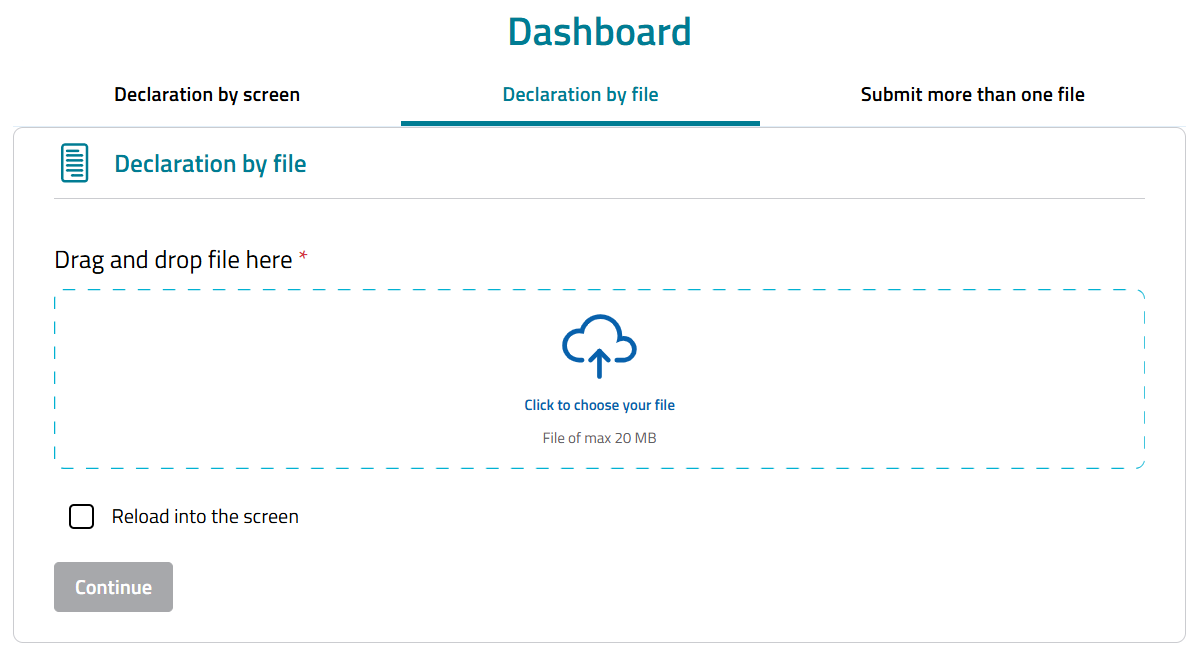
To use it, select a monthly or quarterly period (Intervat does not accept custom ranges) and configure your organization VAT number in settings.
The figures come from your invoices for the period. Always check the generated file against the report on screen before submitting.
What's supported
- Domestic sales at the standard Belgian rates (6%, 12%, 21%): taxable base in grids 01/02/03 and VAT due in grid 54, plus zero-rated sales in grid 00.
- Deductible VAT on domestic purchases: base in grid 82 and VAT in grid 59.
- Intra-community supplies (grids 44, 46) and acquisitions (grids 86, 88 with self-assessed VAT in grid 55), driven by the invoice tax scheme.
- Reverse charge / co-contractant sales (grid 45) and purchases (grid 87, VAT in grid 56).
- Exports (grid 47) and imports with postponed accounting (grid 87, VAT in grid 57).
- The balance to pay (grid 71) or to reclaim (grid 72), with an automatic refund request when you are in credit.
- Credit notes, reported in the dedicated correction grids (48, 49 for issued; 84, 85 for received, with the VAT in grids 63 and 64).
- The December advance (grid 91) on the December or Q4 return — see below.
Self-assessed VAT (intra-community, co-contractant, imports) uses your default local VAT rate and is deducted in full in grid 59.
December advance (grid 91)
Belgian filers must pay an advance on the December (or fourth-quarter) VAT by December 24. On the December/Q4 period, a December advance selector appears in the report header with the two legal methods:
- Actual figures (grid 91) — you pay the VAT actually due on operations from the start of the period through December 20, and declare that amount in grid 91. Financica fills grid 91 from your VAT Prepayments account (the dedicated account, code 4115, where the advance payment is booked). A zero is exported as an explicit 0.00, which declares that nothing was due under this method.
- Based on previous period — you pay an amount equal to the previous period's VAT; grid 91 stays empty.
Book the advance payment on the VAT Prepayments account when you make it. With the actual-figures method selected, the report warns when that account has no movements in the period, and when the booked amount differs from the VAT due on the period's operations through December 20.
Coming soon
The following are not in the file yet. If they apply to you, review the generated file and add the missing amounts directly in Intervat before submitting:
- Exempt (article 44) sales are left out of the file (they are not reported in the periodic return).
- Goods vs investment split for purchases (grids 81, 83). For now all purchase base goes to grid 82.
- Non-deductible VAT on purchases (the whole VAT amount is currently treated as deductible).
- Manual VAT adjustments booked directly on the control accounts, not linked to an invoice.
- Non-EUR invoices (Intervat is EUR-only).
Printing
Use the settings menu (gear icon) in the report header to open the print view. This renders the VAT return in a print-optimized layout with your organization name and logo, then opens your browser's print dialog. You can print to paper or save as PDF using your browser's built-in "Save as PDF" option.
Typical VAT periods
- Monthly — Required for larger businesses in most EU countries.
- Quarterly — The default for smaller businesses.
- Annual — Available in some jurisdictions for very small businesses.
Check with your accountant or local tax authority for your filing frequency.